Appendix: Using tmpnb.org or try.jupyter.org
Get an active notebook running
- Go to tmpnb.org or
try.jupyter.org and you’ll see a
dashboardlike below.
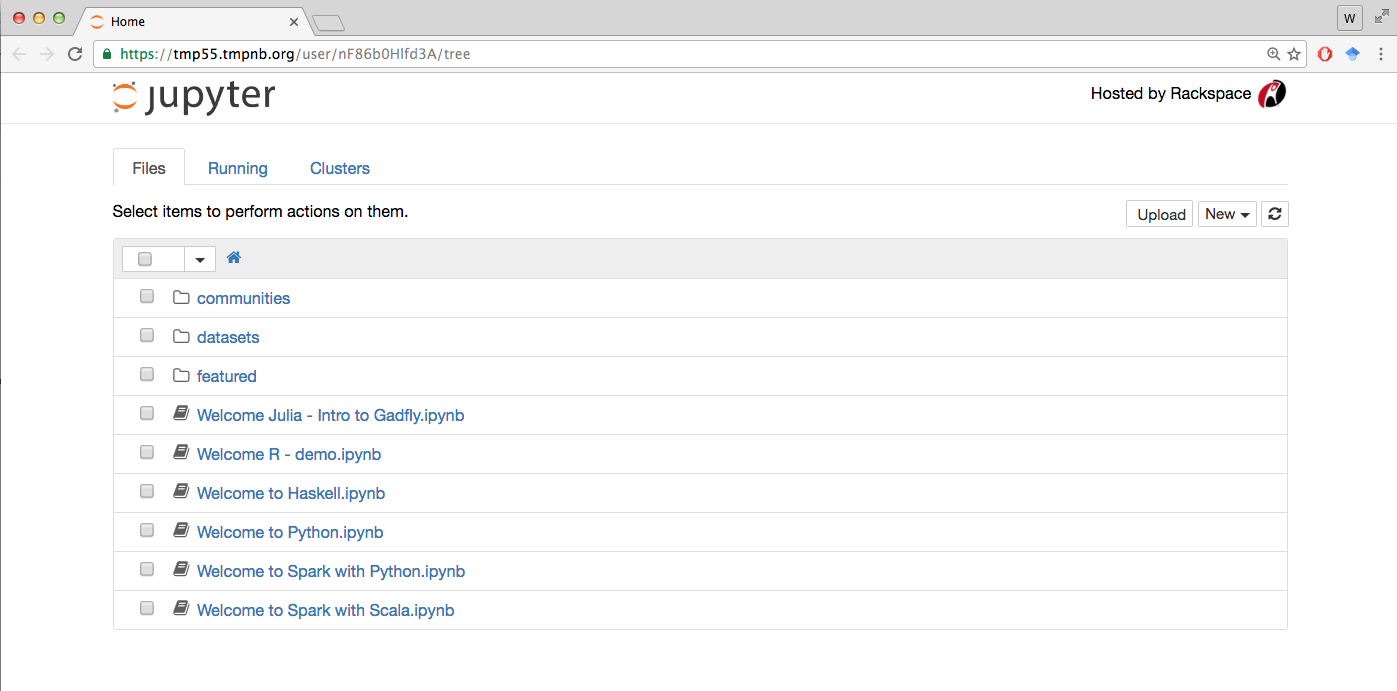
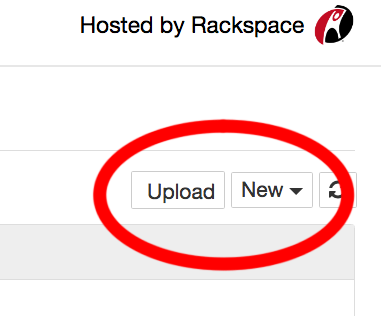
- If you already have a notebook file, click
uploadon the upper right side of the dashboard, and then point the browser at your file.
Click okay and then the notebook will show the name of your file at
the top of the dashboard. Click the upload button next to that
to actually upload.
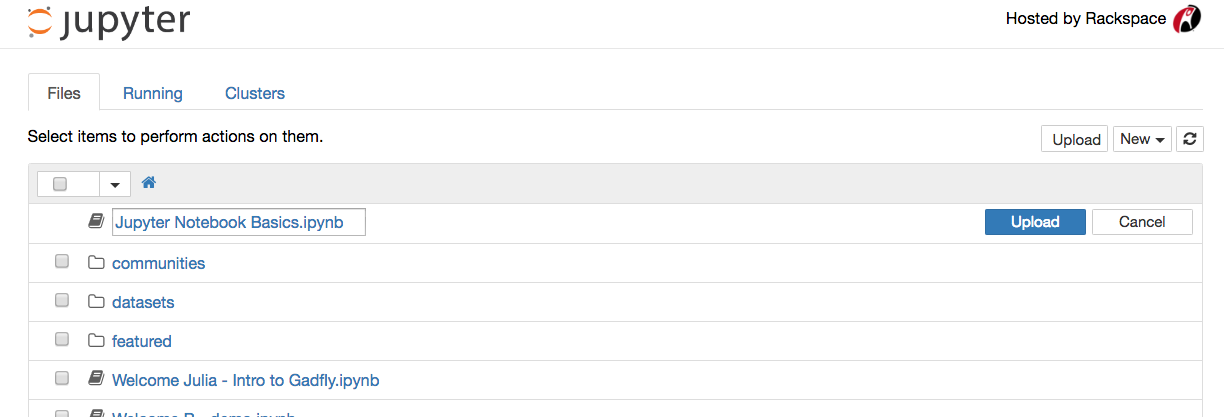
Once uploaded, click on it in the list of notebooks to launch.
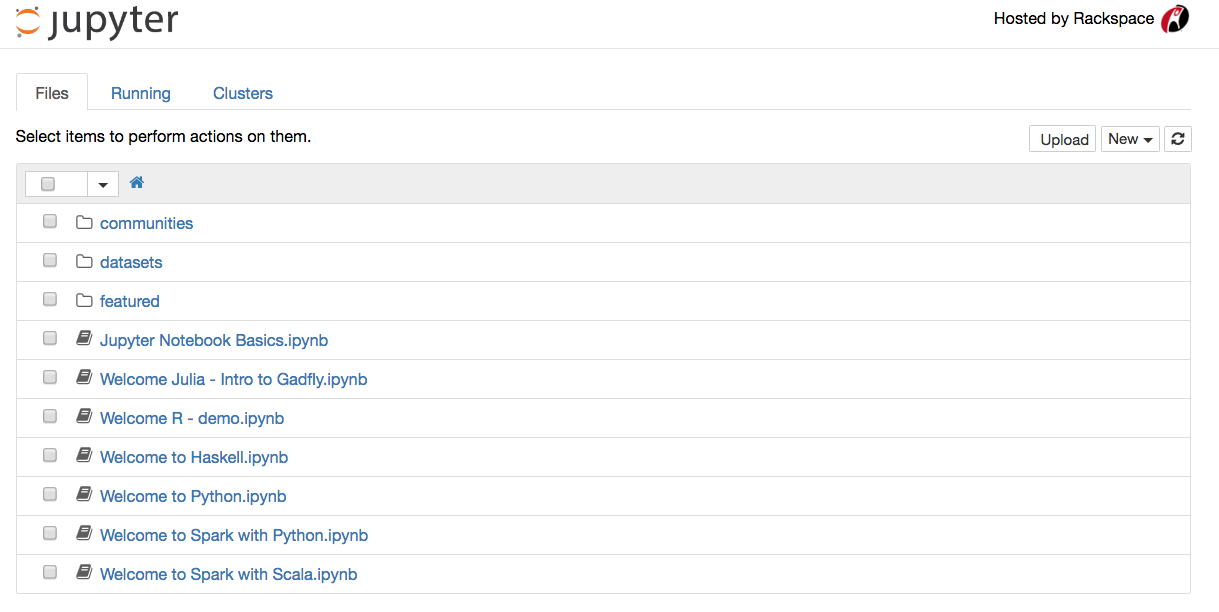
In the example above, the uploaded notebook
Jupyter Notebook Basics.ipynb is now ready to be clicked on to
initiate launch.
- If you have no notebook, select one from the list or click
Newand choose your language option.
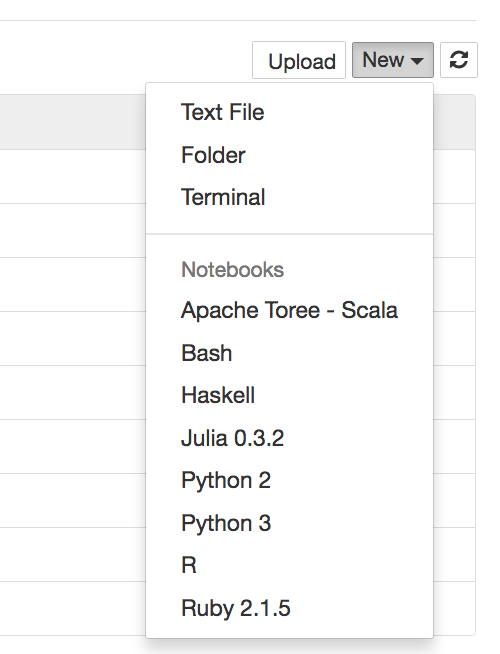
(You can acquire notebook files from many sources that you could then upload for active use using the process outlined above. Several of such sources can be found by finding the Github accounts linked to the notebooks referenced here.)
Try the notebook
- Tips
- hit
shift-enterto run a cell. - the pull-down menu in the toolbar lets you switch cells from
codetomarkdownbut there are also short-cuts. - Fom inside the notebook you can always return to the
dashboardby clicking the Jupyter logo in the upper left side.
- hit
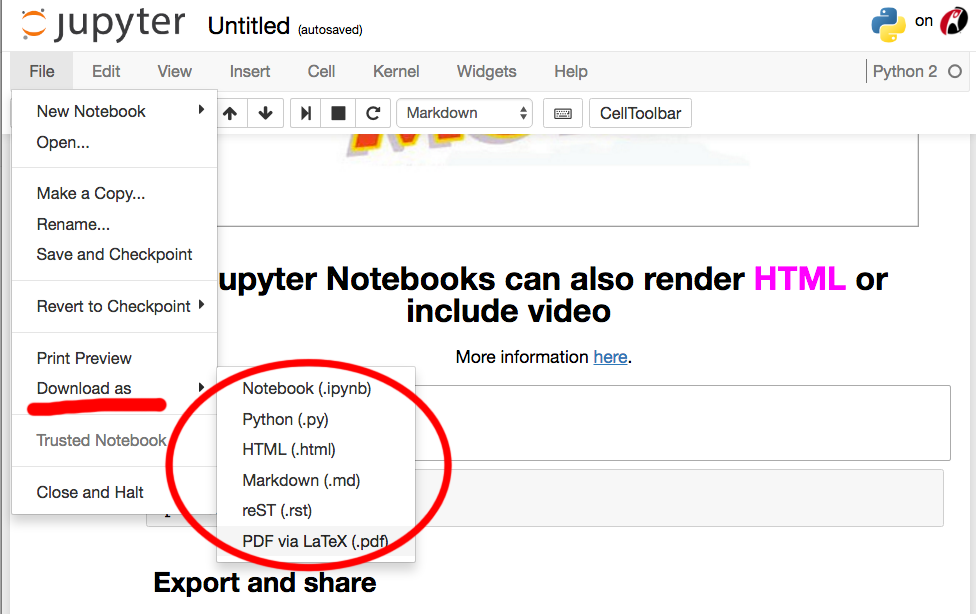
- REMEMBER THE ACTIVE FORM IS EPHEMERAL. If you did anything that
you are happy with, be sure to save it locally by going to
File>Download as>Notebookand saving the file on your drive. Later you can use theuploadprocess covered in the first part above to resume using it as an active notebook.